Save for later
How to save Safari and Chrome tabs before closing them
Keep the links from a busy window and know how to find them again.
SaveNest saves links from the current window and leaves tabs open until you decide to close them.
You want to close a browser window, but it contains the article you haven't finished, a few useful references, and something you promised to come back to. Leaving everything open feels easier than deciding what belongs in a bookmark folder.
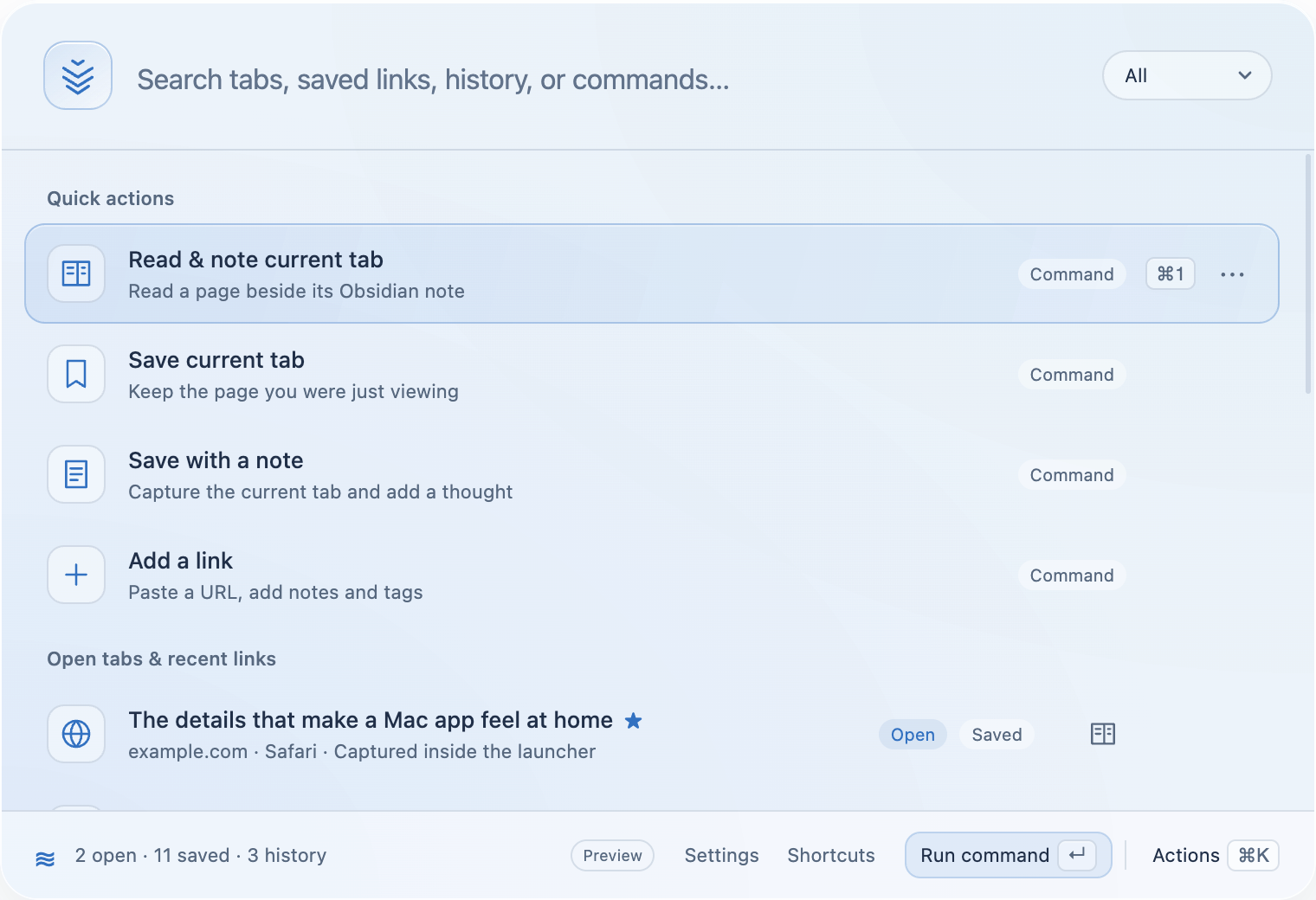
SaveNest can save the web links from your current Safari or Chrome window into a local library. After checking that the links are there, you can close the tabs and search for them later with ⌘O. You don't need an account to use the local app.
There is one distinction to make before you start: saving a link preserves its address and title. It does not preserve an unfinished form, a login session, the page's exact scroll position, or an offline copy of the website. Finish or separately save any work inside a page before closing it.
Save a window of tabs in SaveNest
Start with the browser window you want to clear. If you have several windows open, handle one at a time so you know what you saved.
- Bring the Safari or Chrome window to the front. Choose the window containing the tabs you want to keep.
- Open SaveNest with ⌘O. Type “save all tabs” and choose Save all tabs in the current window. You can also find the command through Actions or ⌘K.
- Allow browser access if macOS asks. SaveNest needs permission to read tabs from that browser. If you previously declined, check System Settings → Privacy & Security → Automation.
- Wait for the save confirmation. If SaveNest reports an error, resolve it before closing the window.
- Check the saved links. Open the launcher, choose Search saved links, and search for a few pages from that window. Open an important reference to confirm it leads where you expect.
The bulk-save command leaves your tabs open. Close the window yourself after checking the result. Repeat for each additional window, including windows in another browser.
If you prefer a direct shortcut, the default for saving the current window is ⌘⌥⇧K. Your configured shortcuts may differ; SaveNest's Shortcuts guide shows the bindings on your Mac.
Keep a few tabs instead of the whole window
A window can mix useful references with pages you no longer need. In that case, choose Save selected browser tabs. SaveNest opens a checklist of the web tabs in the current window, and you select the ones to keep.
For a single page, use Save current tab. Choose Save with a note when the title won't remind you why you kept it. A note such as “compare the yearly price before renewing” gives you something more useful to search for than another vague product-page title.
Keep the note brief enough that you'll write it. You can edit notes and tags later; the first job is to make the page findable outside your tab bar.
Find a saved page after closing it
Press ⌘O and type a word from the title, URL, note, or tags. Choose Search saved links when you want to limit results to your library, then press Enter to open a result.
SaveNest also searches open tabs and recent browser history. Those sources serve different purposes: an open-tab result helps you switch to something already on screen, while a saved link remains in your library after you close its tab. Our guide to searching Safari and Chrome tabs together covers that workflow.
What happens to browser sessions and unsaved work?
A saved URL takes you back to the page's address. The website decides what appears there when you return. You might need to sign in again, a shopping cart might have changed, or an article might have moved.
Treat anything you typed into a website separately. Save a draft in that service, export the document, or copy the text somewhere you control. A tab manager cannot replace the website's own save function.
SaveNest's whole-window command also doesn't recreate an exact arrangement of windows and browser profiles. Use it when you want a searchable collection of links; check your browser's own session features when restoring that arrangement is the main requirement.
A few limits worth checking
Direct tab capture supports Safari and Chrome, along with other supported Chromium browsers. Firefox's open tabs aren't available through the same capture method; copy a link and paste it into SaveNest's launcher instead. Hidden Safari Tab Groups also won't appear in open-tab search.
Your saved library stays on your Mac. Use Export saved links for a JSON backup and keep that backup somewhere appropriate for you. Saving links doesn't automatically create a cloud backup. The privacy page explains browser access and optional reporting.
Try this with one small window first. Once you trust the save-and-find routine, clearing the next window takes less deliberation. For the larger problem of keeping hundreds of tabs open “just in case,” start with a manageable tab routine.
Related reader question: How do you tab addicts manage too many tabs? on Reddit.