A calmer browser
Hundreds of open tabs? Close them without losing your place.
A practical first cleanup for the tabs you are afraid to close.
Start with one window. Save what matters, check that you can find it, then close it.
You opened a page because it mattered. Then another page mattered, and another. Now there are hundreds of open tabs, the titles have disappeared, and closing a window feels like throwing away work.
Start with one window. Save the pages you want to keep, check that you can find them again, then close the ones you aren't using. You can do that with bookmarks or with SaveNest, a free tab and link launcher for Mac. The useful change is giving an unfinished task somewhere to live after its tab closes.
Why closing tabs feels harder than opening them
A browser window can hold several kinds of unfinished business: research for a project, something you meant to buy, an article you want to read, and a form you haven't submitted. When they all look like tabs, each close button asks you to make a different decision.
That fear of losing your place comes up in this Reddit discussion about managing too many tabs. The question includes saving project windows for later and keeping the process fast. Another discussion about 100-plus open tabs describes searching again for pages that are already open.
Those are useful problems to solve separately. Saving protects the links. Search helps you find them. A short note preserves the reason you cared.
Choose one window you can finish with
Pick a window belonging to a paused project, rather than the one containing your current work. Leave unsent messages, forms, uploads, and anything with unsaved edits alone until you've saved that work in the website itself.
For each remaining page, decide whether you'll use it in your next work session. Keep that small working set open. Save reference material you may need later. An expired offer, a duplicate search result, or a page you already finished can usually go.
You don't need to review every tab on your Mac before making progress. Clearing one old project window gives you a complete example of a system you can trust.
Save the useful pages with SaveNest
Bring Safari or Chrome to the front, then open SaveNest with ⌘O. Type Save all tabs in the current window and run that command. It saves the web tabs from that window to your local library and leaves the tabs open.
If the window mixes unrelated projects, choose Save selected browser tabs and check only the pages you want. For a page whose purpose won't be obvious later, use Save with a note.
A useful note names the next action. For example: “Compare this pricing table with the other supplier before Friday.” That's a hypothetical note, but it shows how a few words can replace the reminder you were using an open tab for. A tag such as website-redesign can connect several saved pages from the same project.
SaveNest captures links, not everything inside a browser session. It doesn't preserve unsent form text, cookies, or the exact arrangement of your windows. See the save-tabs guide for the full capture workflow and browser limits.
Prove that you can find a page again
Before closing the window, press ⌘O, choose Search saved links, and search for a distinctive word from one of the pages you saved. Try another page from the same window. Open a saved result and check that it is the page you expected.
That small check matters more than a perfectly arranged folder system. You are replacing “I know where the tab is” with “I know how to get this page back.”
When the links are there and any unsaved work is safe, close the paused window yourself. Whole-window capture deliberately leaves that choice to you. Repeat with another window only if you still have time and attention.
Find the page before opening another copy
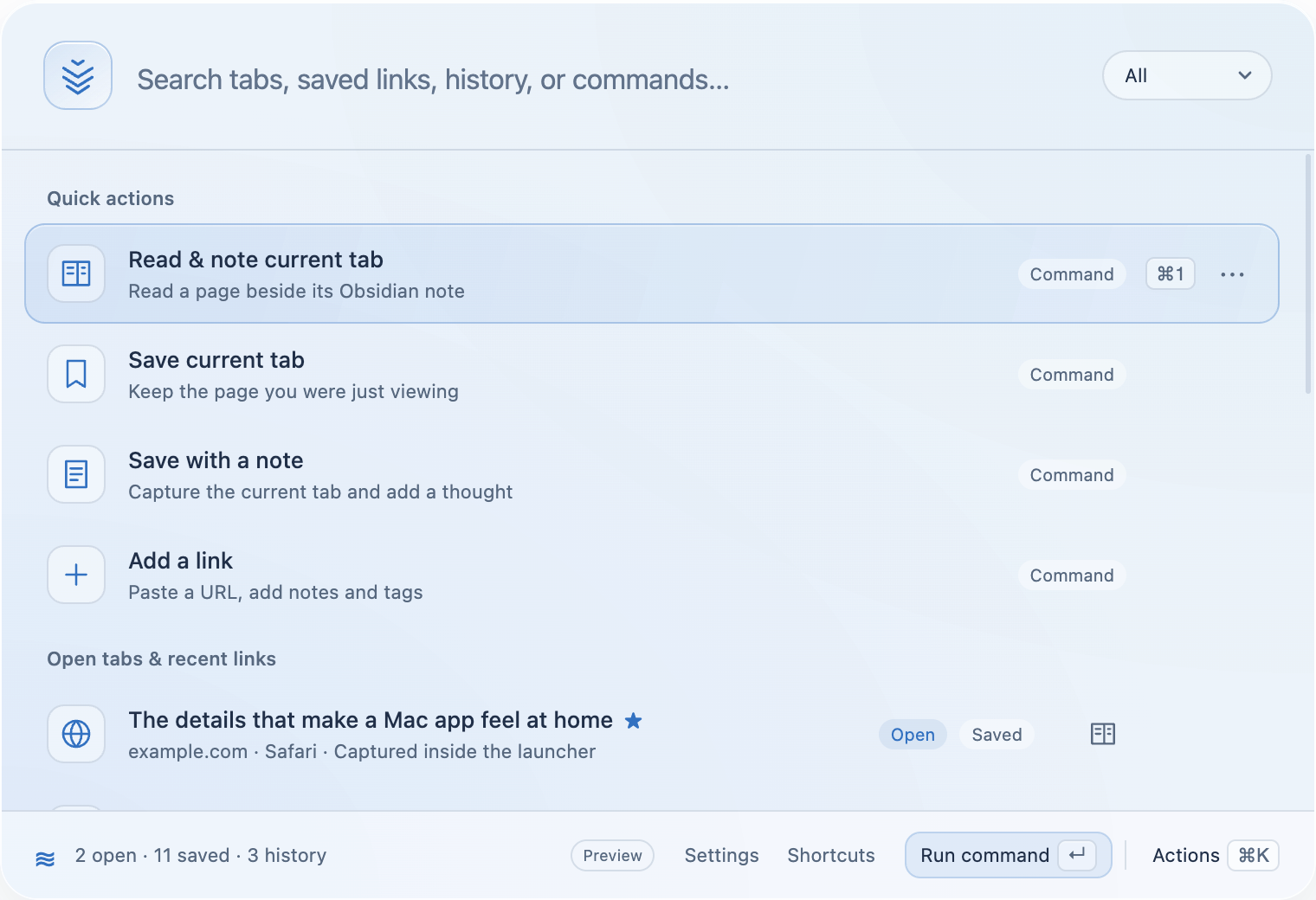
When you remember a page, search SaveNest before searching the web. The launcher brings open tabs, saved links, notes, and recent history into one place. An open-tab result switches to that tab; a saved-link result can reopen its URL.
If you remember the website but not the title, try its domain. If you saved a note, try the words you used to explain the page's purpose. Choose Search open tabs to narrow a crowded result list. The Safari and Chrome search guide explains the differences between these scopes.
The habit is small: look for the page you already have before adding another copy. SaveNest won't impose a tab limit or decide which research you should abandon.
Keep active work small enough to recognise
At the end of a work session, save pages that belong to work you've paused. Keep the pages needed for your next concrete task open. For reference material, a searchable title and a short note are often enough; you don't have to build an elaborate taxonomy.
Articles need a separate decision. Saving thirty articles doesn't create time to read them. Pick a few that answer a question you currently have, and let the rest remain reference material. The read-later guide gives you a way to make that distinction.
Occasionally use Export saved links to keep a JSON copy of your SaveNest library somewhere you back up. Local storage means the library lives on your Mac; a second copy protects you if that Mac or its data becomes unavailable.
Start with the old window you least want to look at. Save it, find two of its pages again, and close it when you're ready.